

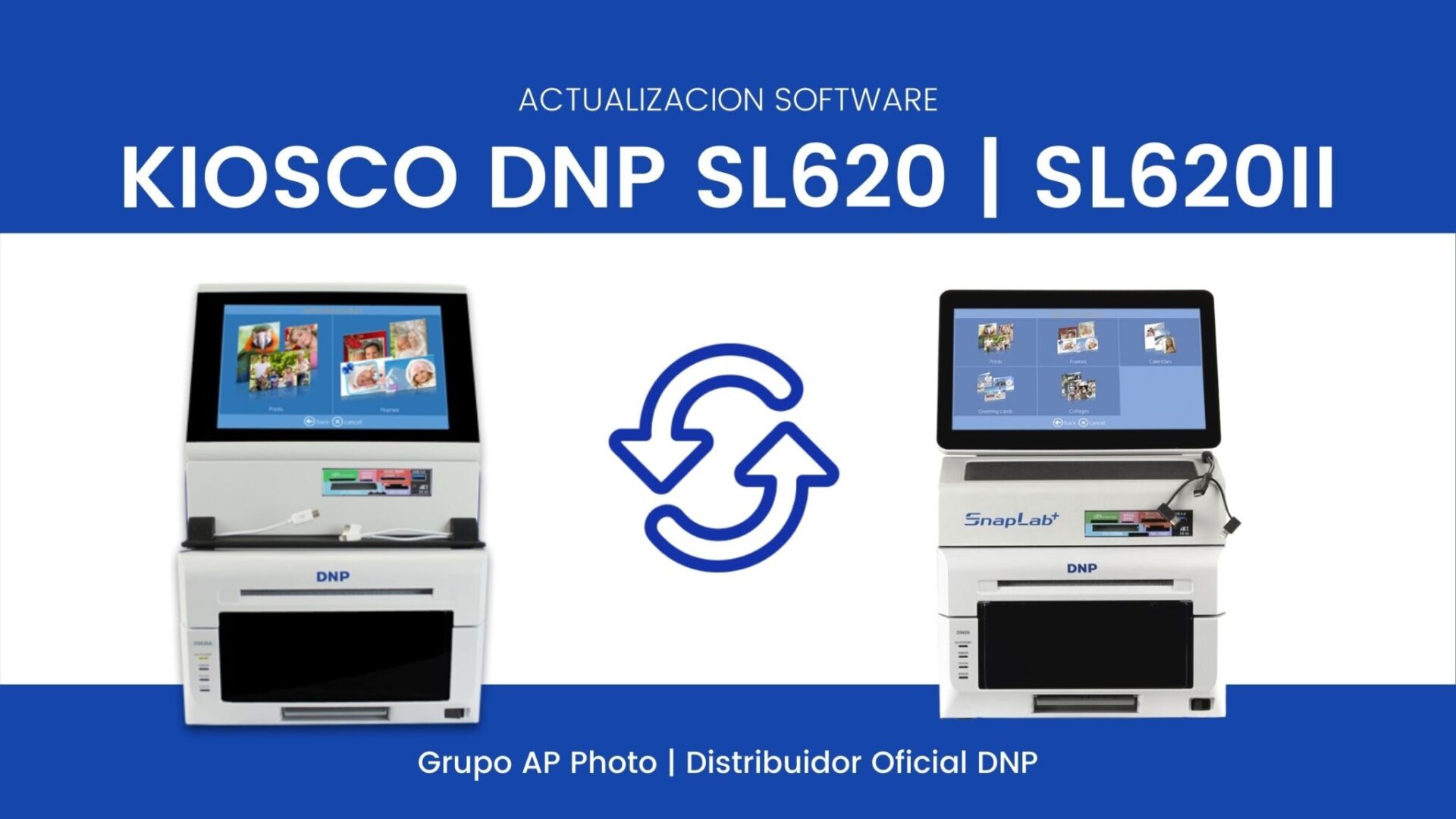
Maybe one day you bought this kiosk, started it up and until now you had not thought about updating it, or maybe you did not know how to do it.
Well, I am going to try to show you step by step how to have your kiosk with the latest news that have been appearing.
First of all, both SL620 and SL620II can share exactly the same software version, so even if you have a SL620 of the first version you can have it updated as if it was just purchased, or if you have an older one and a more current one, you can make them work identically and with the same services.
Since the first DNP SL620 Kiosk was released, there have been many updates and improvements. You will notice this right away if you have had your SL620 for years and have never upgraded it.
I am going to explain all the ways to update it depending on the software version you have, so I will be a bit long, but don’t worry, you will probably only have to do one of the options indicated and not all of them!
Remember also that if the procedure seems complex you can always contact our SAT who will prepare a quote for the update: [email protected]
As always when you have to do this type of intervention, we recommend you to do it in “quiet” moments and if possible outside of business hours. We must also avoid risky situations such as sockets or power strips that are not in perfect condition, days of electrical storms or blackouts, and the recommendation par excellence is that the equipment is always connected to a UPS, this can save us from serious problems and unfortunately every year we see some because of power outages and electrical voltages.
The upgrade options I am going to explain are for :
- DNP SL620/620II Kiosk connected to the Internet
- Kiosk DNP SL620/620II with version 3.3. and subsequent
- DNP Kiosk SL620/620II with version 3.2. and earlier
Therefore, if you do not have it connected to the Internet, the first thing we are going to check is which version we have installed in our DNP kiosk to go to the corresponding Option. As I said, the kiosk has been evolving and in the current versions the update is much easier than in the older versions.
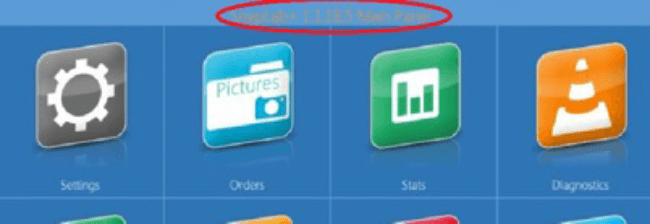
The software version can be viewed by going to the Kiosk Manager (top of the screen). If you don’t remember how to enter the administrator, click here
Let’s get to it!
OPTION 1
Kiosk DNP SL620/620II connected to the internet
Access the Administrator → select Diagnostics → and Check for Updates (or similar phrase depending on the version you have).
The system will perform the download and update.
You will see that once the download is finished you will have to restart your computer.
Next, a blue screen will appear, click → Restart → Restart.
→ we will be asked to accept the Terms and Conditions of Use of the Software.
and we will have to restart again.
Notes:
- Once the update is started and depending on each software version, the indications may not be exact, in some updates we have found that the blue screen mentioned above does not appear.
- If this update system does not work for any reason, you can do it with options 2 or 3 below.
- This recent update incorporates some improvements and also DNP’s “Printogo” system, so that the kiosk can receive orders on-line, but for the moment it is not operational for Spain. We have requested some improvements and changes. We will see how it evolves later on.
OPTION 2
Kiosk DNP SL620/620II with version 3.3. and subsequent
First we will download the update here:
You will have to unzip the file (1Gb) and open the folder.
Now locate the executable file and copy it to a flash drive.
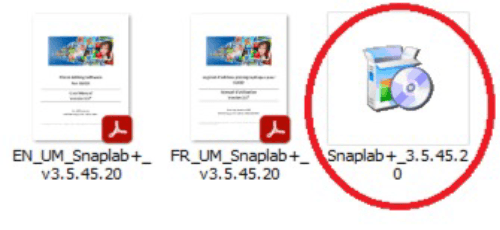
You will also see the upgrade manuals (currently only in English and French).
Now with the pendrive we go to the DNP kiosk and we connect it to a USB of the kiosk, it can be for example the front of the card holder.
Next go into Kiosk Manager → Diagnostics → and Check for updates on usb: The process will have started at this point
Once done, restart the computer.
A blue screen will appear → Restart
Now we will be asked to accept the Terms and Conditions of Use of the Software
and we will have to restart again.
Notes:
- some early version 3.3.x.x versions have been detected that this option, although it appears, does not work. This was subsequently resolved. If this is the case, we will have to upgrade as indicated for 3.2 versions. or earlier)
- Once the update is started and depending on each software version, the indications may not be exact, in some updates we have found that the blue screen mentioned above does not appear.
- If this upgrade system does not work for any reason, you can do so by following the instructions in Option 2 below.
- This recent update incorporates some improvements and also DNP’s “Printogo” system, so that the SL620/SL620II can receive orders on-line, but for the moment it is not operational for Spain. We have requested some improvements and changes. We will see how it evolves later on
OPTION 3
Kiosk DNP SL620/620II with version 3.2. and earlier
First we will download the update here:
You will have to unzip the file (1Gb) and open the folder.
Now locate the executable file and copy it to a flash drive directly to the root of the flash drive (no folders).
You will also see the upgrade manuals (currently only in English and French).
Now with the pendrive we go to the DNP kiosk and we connect it to a USB of the kiosk, it can be for example the front of the card holder.
We are going to do this update Option 3 by copying the update executable file to the Windows desktop and running it from there.
If you do not know how to access the Windows desktop, we explain below
EXIT KIOSK MODE:
1) Enter the administrator section. If you don’t remember how to enter, click here
https://drive.google.com/file/d/16ymTqY_XS3prEuJa2oWkD9EknyCnq6N4/view
2) Click on the Quit application button and wait a few seconds.
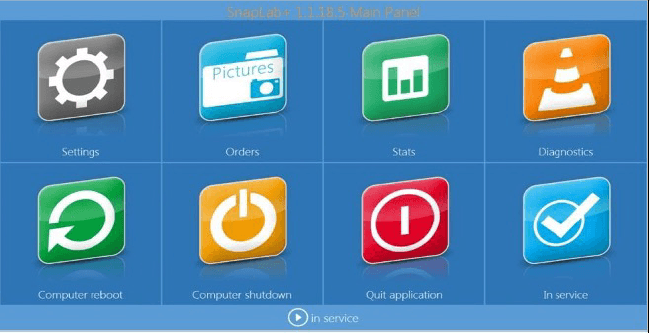
3) The system will display :
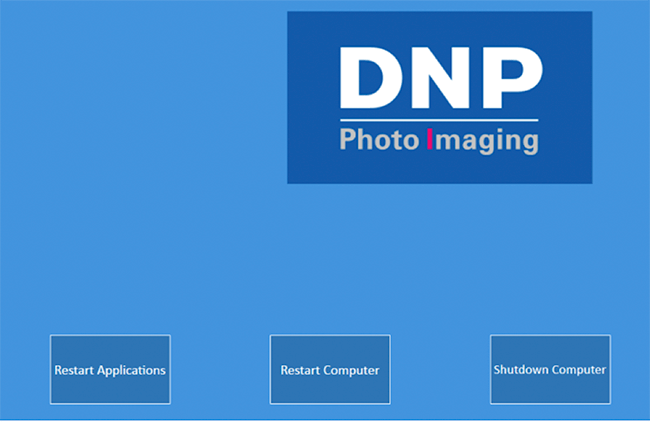
4) Now click on the Advanced button.
5) Enter the password: 1600

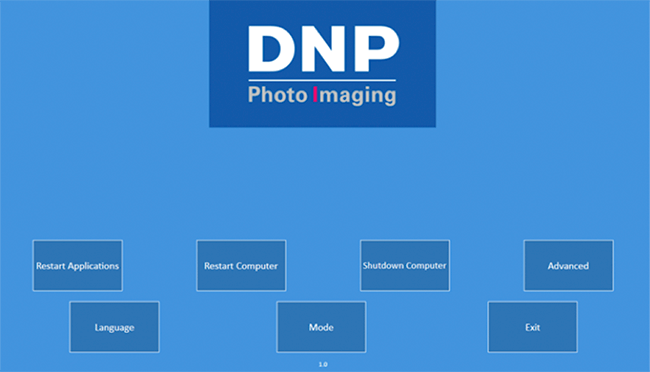
- Quickly click on the ‘Exit’ button as the Advanced mode will disappear in 3-5 seconds.
- Now we will be on the desktop of the Windows operating system of the equipment (DNP SL620 and DNP SL620II).
Once we are in the Windows desktop, we will open the pendrive (My Computer), and we will copy the update file in the own desktop. Once there, double click to execute. The installation will have started.
Once done, restart the computer.
Once done, restart the computer.
A blue screen will appear → Restart
Now we will be asked to accept the Terms and Conditions of Use of the Software
and we will have to restart again.
Notes:
- Once the update is started and depending on each software version, the indications may not be exact. In some updates we have found that the blue screen mentioned above does not appear.
- This recent update incorporates some improvements and also DNP’s “Printogo” system, so that the kiosk can receive orders on-line, but for the moment it is not operational for Spain. We have requested some improvements and changes. We will see how it evolves later on.
– IMPORTANT: You have entered the Windows- environment.
Do not modify values or configurations of the equipment or the router. You may cause the equipment to malfunction.
The equipment is designed and developed only to perform the tasks detailed in the user’s manual of the equipment. Anything that is NOT detailed should not be done as it may seriously affect the operation and performance of the equipment, such as installing other software, changing Windows settings, installing other peripherals not detailed in the manual, modifying network or router settings, etc.
Altering configurations or installing unauthorized software or hardware leaves a trace on the system, so if you need technical assistance for this reason, it will not be covered by the warranty conditions and failure to report it will result in additional intervention time.
This is all,
I hope you can get the most out of your DNP SL620 and SL620II kiosk.


